

- Upload a file through your Flinks Dashboard
- Upload a file through Flinks Connect
Upload a file through your Flinks Dashboard
Complete the following steps to upload a file to your Flinks Dashboard: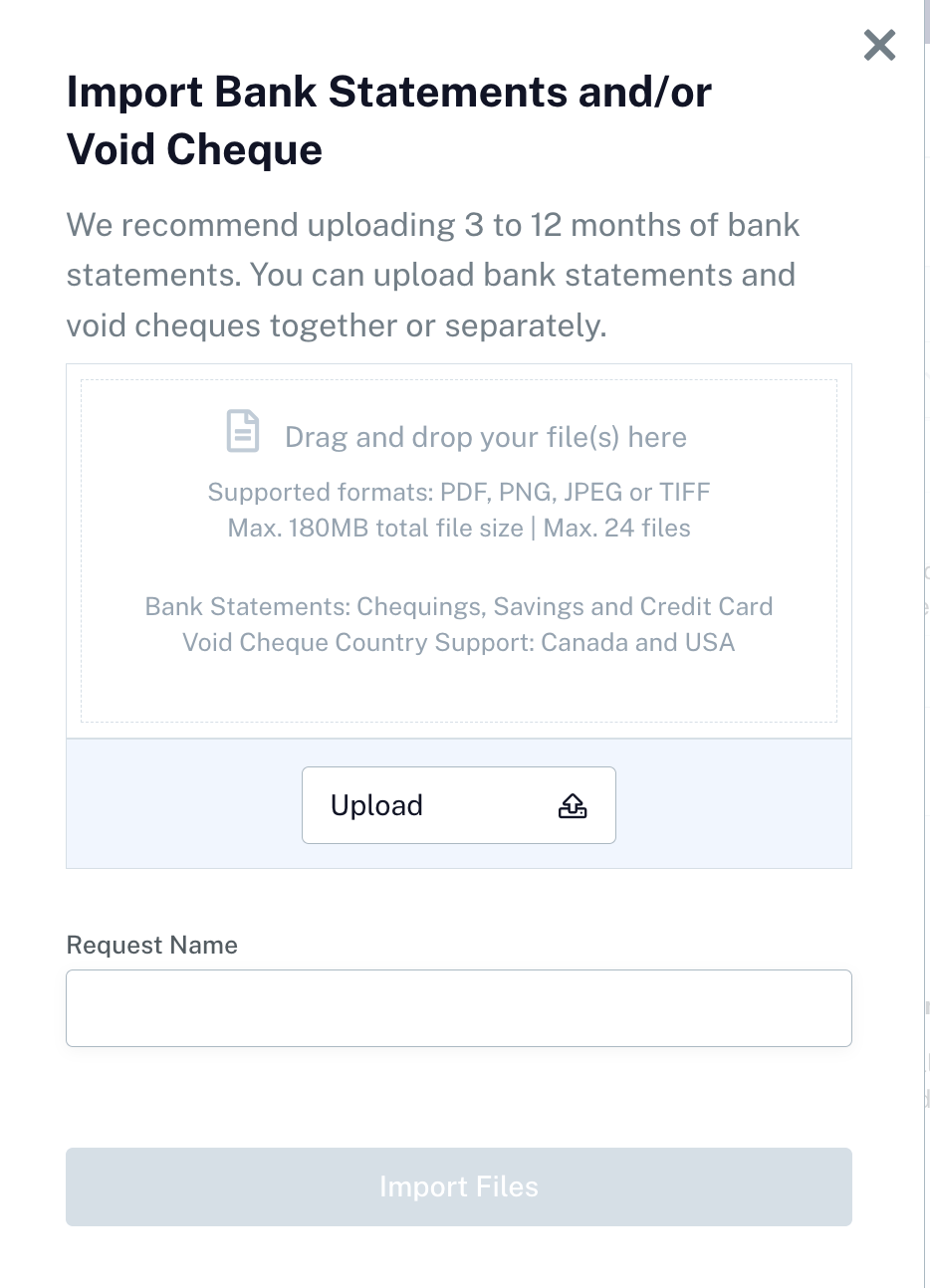
- In the Dashboard, navigate to the Insights screen, then go to the External Data tab.
- Select Import PDF.
- Select the file(s) you want to upload. You must select files for a singular customer at a singular financial institution. [componentCallout component] [componentCallout component]
- Enter a unique identifier to describe the file(s) you’ve selected, such as a customer name. This is used to identify the files when we deliver the extracted data to you.
- Select Import Files. You’ll see a success message if we successfully receive your file(s). If you receive an error message, try uploading the files again at a later time.
- Review the upload status to check if the data has finished processing. Data is typically ready to review within 10 minutes of uploading, but in some cases it may take up to four hours to process. [componentCallout component]
Upload a file through Flinks Connect
Complete the following steps to upload a file in Flinks Connect.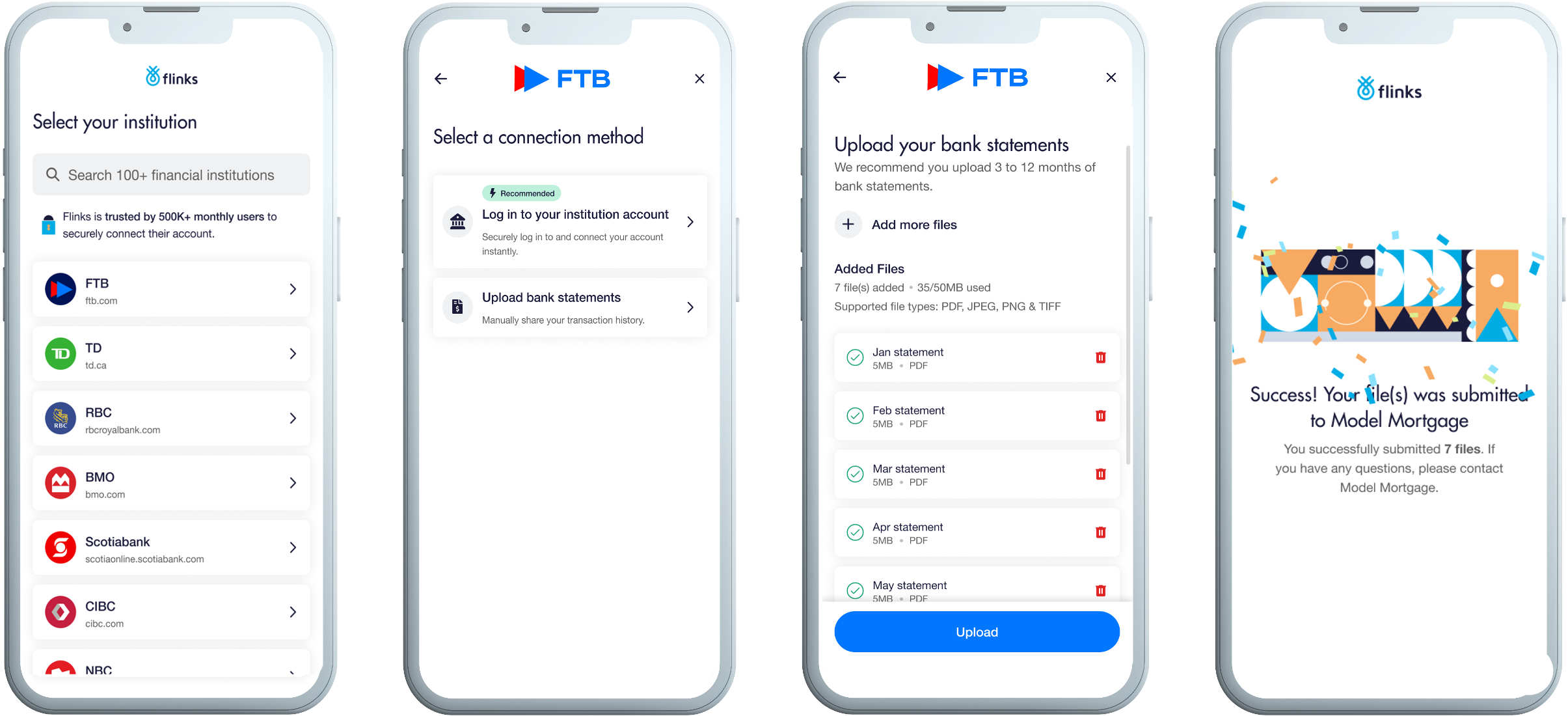
- Depending on the screen you see, complete one of the following:
- If you are on the Upload PDF Statements screen, continue to step 2.
- If you are seeing the upload option after experiencing a bad connection, select Upload PDF statements.
- If you are being asked to choose a connection option, select Upload bank statements.
- Select Browse and then select the file(s) you want to upload.
- Select Continue. You’ll see a message if we successfully receive your file(s).
- Review the upload status to check if the data has finished processing. Data is typically ready to review within 10 minutes of uploading, but in some cases it may take up to four hours to process. For more information about how to review processed data, see Receive Your Data.